
Custom Home Page
A home page in your image, your tools one click away
Style the Kammi home page in your company’s colours and add shortcuts to your tools: intranet, health insurance, email. Each employee finds their alerts and access there, on computer and on phone.
How do you set up your home page?
From styling to shortcuts, in four steps
Style the home page
You choose the banner background, upload your logo and set the app’s theme colour.
Add your shortcuts
Intranet, health insurance, email or a Kammi page: you create the company shortcuts.
Choose where they appear
You tick the home pages where each shortcut appears, and set their order.
Everyone finds their home page
Each employee sees your shortcuts, their alerts and their access, on computer and on phone.
A home page in your company’s colours
Each employee lands on a home page that reflects your company: your banner, your shortcuts, the alerts that concern them and access to their everyday tools.
- Banner with a photo, a colour or your own image
- Today’s alerts: requests to approve, absences, contracts ending
- Company shortcuts, the same for everyone
- Module shortcuts that everyone arranges their own way
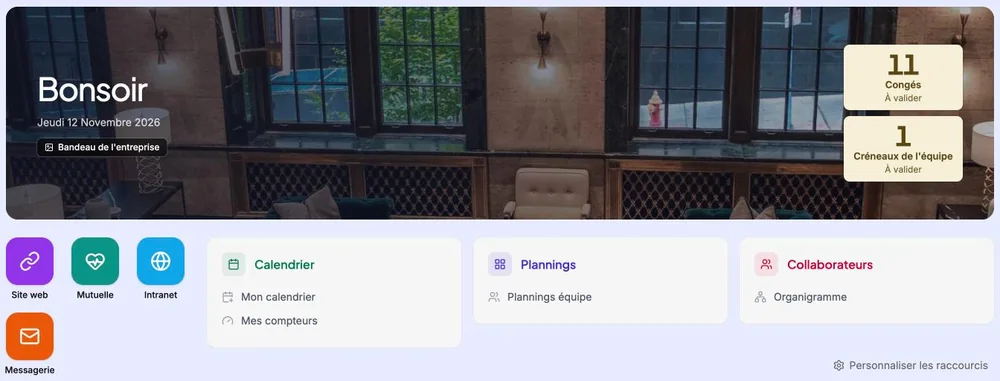
Your tools one click away: intranet, health insurance, email
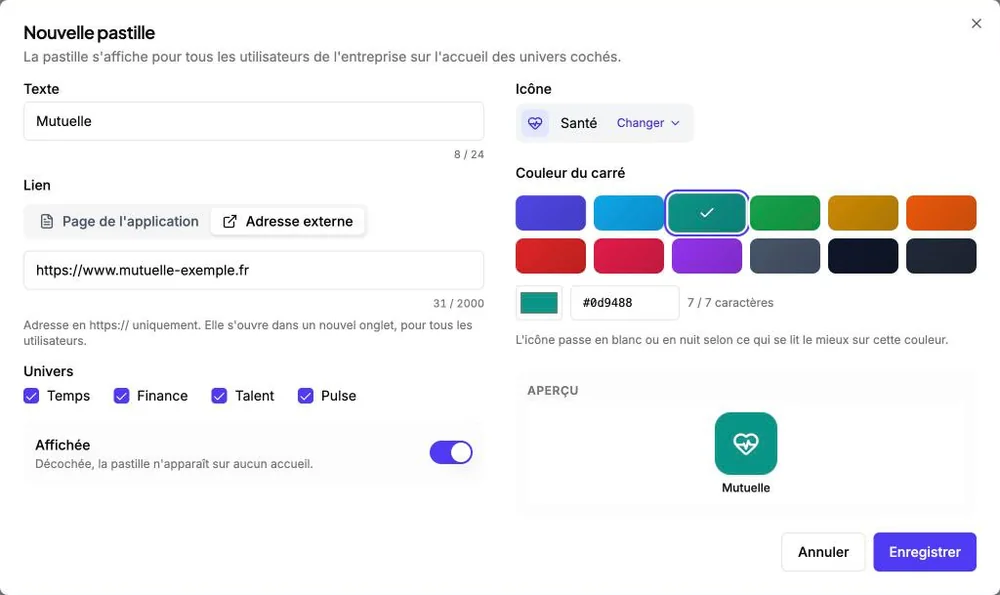
You add shortcuts to a Kammi page or to an external site. Each one has its own text, icon and colour, and you choose the home pages where it appears.
- Link to an app page or an external address
- Searchable icon library, colour of your choice
- Shortcut preview before saving
- Order set by drag and drop
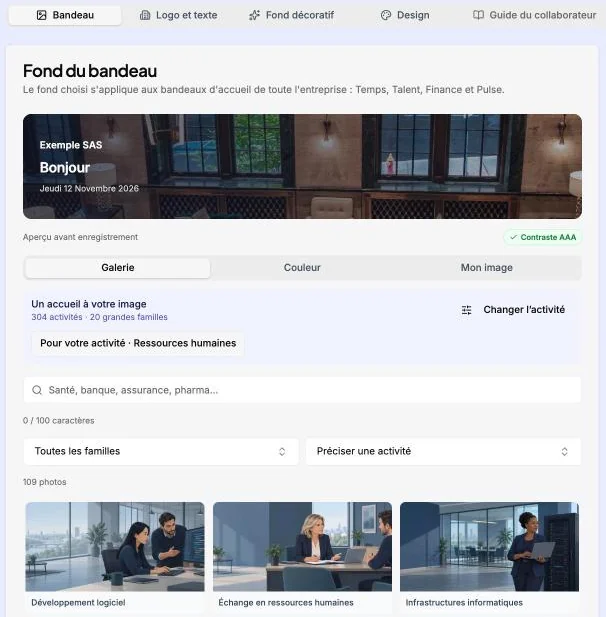
A banner chosen from photos sorted by industry
The banner background is chosen from a gallery of photos sorted by industry, a colour, or your own image. The preview shows the result before you save.
- Photo gallery: 304 activities in 20 families
- Your own photo: JPEG, PNG or WebP, up to 5 MB
- Company logo at the top left of the app
- Theme colour for the whole app
Why choose Kammi for your employee portal?
A home page connected to the rest of your HRIS
Your brand everywhere
Your logo replaces ours at the top of the app, and the theme colour styles buttons, links and the menu.
Links to your tools
A shortcut to an external address opens in a new tab: intranet, health insurance, email, business tool.
Everyone sees what concerns them
A shortcut to a Kammi page only appears to those who can access it. Alerts follow each person’s permissions.
Also on the phone
In the mobile app, a “Shortcuts” tile groups your external links, in the order you chose.
Today’s alerts
Leave to approve, today’s absences, contracts ending: each alert shows as a large number, and disappears at zero.
The handbook and announcements
The Employee Handbook and the company announcement feed have their place on the home page.
Frequently asked questions
Frequently asked questions about the custom home page.
Can we add a link to our intranet or health insurance?
Yes. A shortcut can lead to an external https:// address, which opens in a new tab. You give it a text, an icon and a colour, and you choose the home pages where it appears.
Is the appearance set for each employee?
No. The banner, logo, theme colour and company shortcuts are set once and apply to everyone. Each employee can, however, remove or reorder their module shortcuts.
Are shortcuts available in the mobile app?
Yes, those that lead to an external address. They are grouped in a “Shortcuts” tile on the mobile app home screen, in the order you chose.
The custom home page is part of the suite
Intranet PortalGive your employees a home page that reflects your company
See how to style the Kammi home page and add your shortcuts
Request a demo